
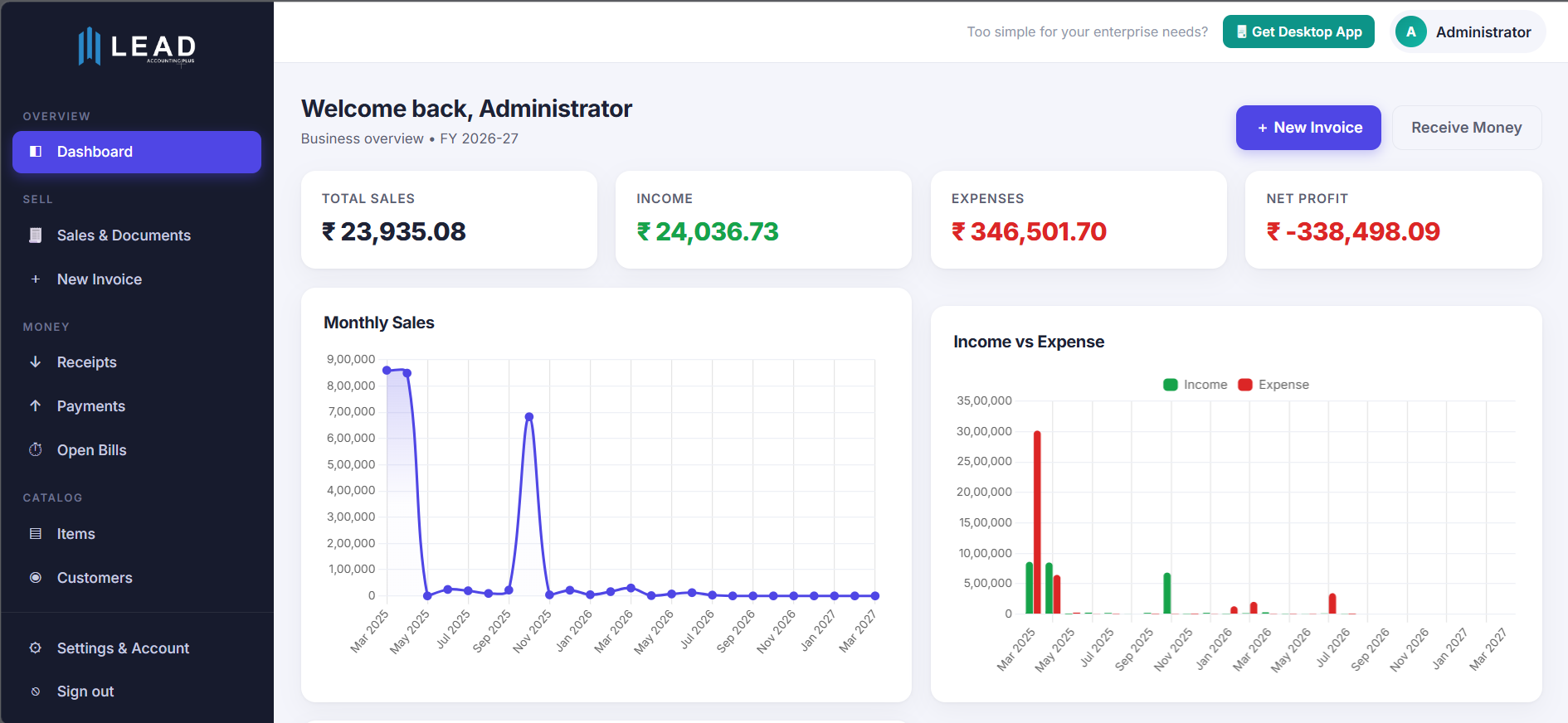
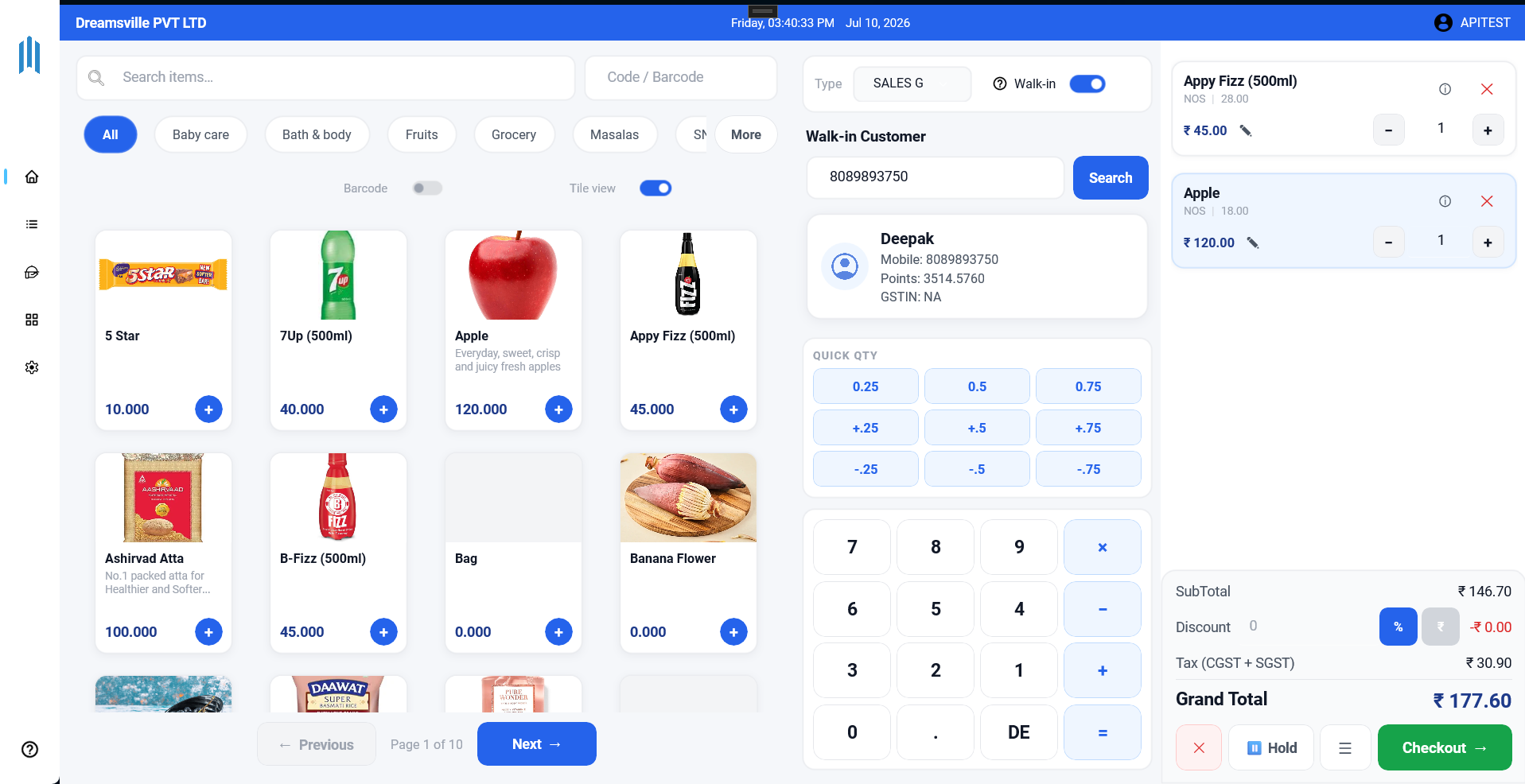

Lead Accounting Plus works inside Claude through the Model Context Protocol (MCP). Ask Claude about your business — sales, stock, receivables, profit — and let it create invoices, receipts, accounts and items against your live LEAD data.
1. In Claude, open Settings → Connectors → Add custom connector (or find “Lead Accounting Plus” in the Connectors Directory once listed).
2. Enter the server URL:
https://mcp.leadaccounting.in/mcp
3. Click Connect. A LEAD sign-in page opens.
4. Sign in with your Company ID, Company Key, User ID and password.
5. Done. Ask Claude something like “What were my top 5 selling items last month?”
“Session expired” — sign in again from Claude's connector settings. LEAD allows one active session per user, so logging in elsewhere ends the previous session.
Connection fails — confirm your subscription is active and the Company ID/Key are correct.
For anything else, see our support page.
See also: Connector privacy policy · About AI & MCP in LEAD · Support